 Benchtop
Setting up Benchtop
This guide takes you from installing Benchtop to logging your first batch and watching your Shopify stock update on its own. Follow it in order the first time. After that you will only ever use step four.
Before you start
You need two things:
- A Shopify store.
- At least one product in that store with inventory tracking turned on.
That second one matters, so it is worth checking now. In your Shopify admin go to Products, open one of your products, and look at the Inventory section. Make sure Track quantity is ticked. Benchtop updates that number for you when you make something, and if tracking is off there is nothing for it to update.
Selling different sizes or scents? In Shopify those are called variants, and each one is a separate thing to Benchtop. An eight ounce candle and a twelve ounce candle use different amounts of wax, so each gets its own recipe later on.
Install Benchtop
Find Benchtop in the Shopify App Store and click Install. Shopify will show you what the app is allowed to see. Benchtop asks for your products, your inventory, and your store locations, because it needs to match recipes to products and update your stock levels.
It does not ask for your orders or any customer information, and it cannot see your customers' names, emails, or addresses.
Once installed, Benchtop lives under Apps in your Shopify admin. Everything happens there, inside Shopify. There is no separate website to log into.
Add your materials
A material is anything a batch uses up. Wax, fragrance oil, wicks, jars, lids, labels, boxes. If it gets consumed making the product, it belongs here.
The fast way: import from a photo or file
You do not have to type these in one by one. Go to Materials, click Import, and give Benchtop any of these:
- A photo of a supplier invoice or receipt, straight from your phone.
- A PDF invoice from your supplier.
- A CSV or Excel spreadsheet, if you already keep one.
Benchtop reads the items, quantities, and costs into an editable list. You check it over, fix anything that looks off, and click add. Nothing goes into your inventory until you approve it. For most makers this is the whole of step two.
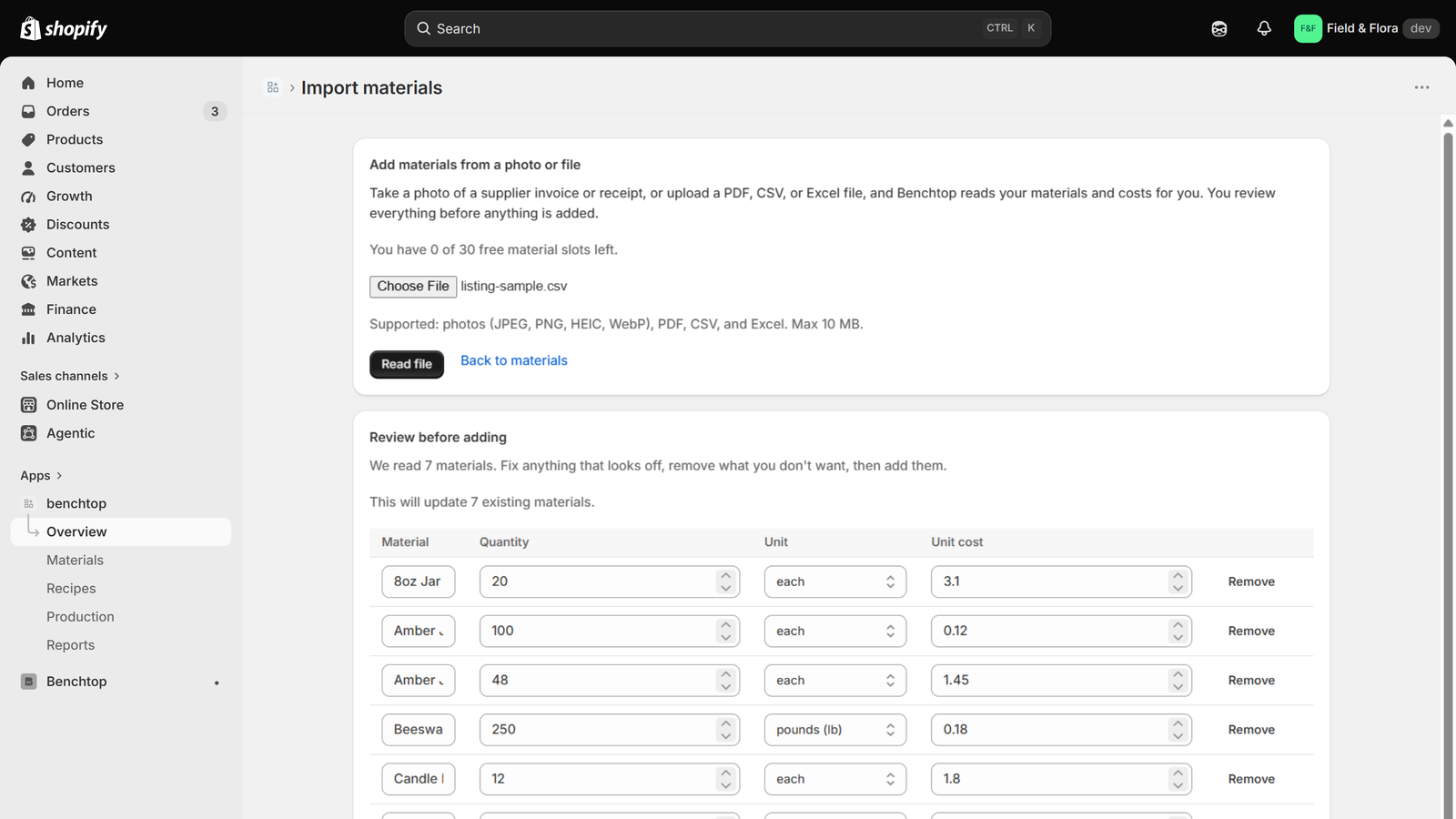
A supplier invoice read into a list you review before anything is added.
Or add them by hand
If you would rather enter them yourself, or want to add one extra material later, click Add material on the Materials page. You will be asked for a few things:
- Name
- Whatever you call it. Soy wax, 8oz jar, cotton wick.
- Unit
- The way you actually measure it. Grams for wax, each for jars and wicks, fluid ounces for oils. Pick whichever matches how you weigh or count it in the workshop.
- Quantity on hand
- How much you have right now. A rough count is fine to start.
- Unit cost
- What one single unit costs you. If you paid $40 for a bag holding 4,536 grams of wax, your unit cost is about $0.0088 per gram. Our cost guide walks through that division if you want the full method.
- Low stock alert
- Optional. Enter the level where you want a warning. Benchtop will flag the material once it drops that low.
Add all of your materials before moving on. Including the small ones.
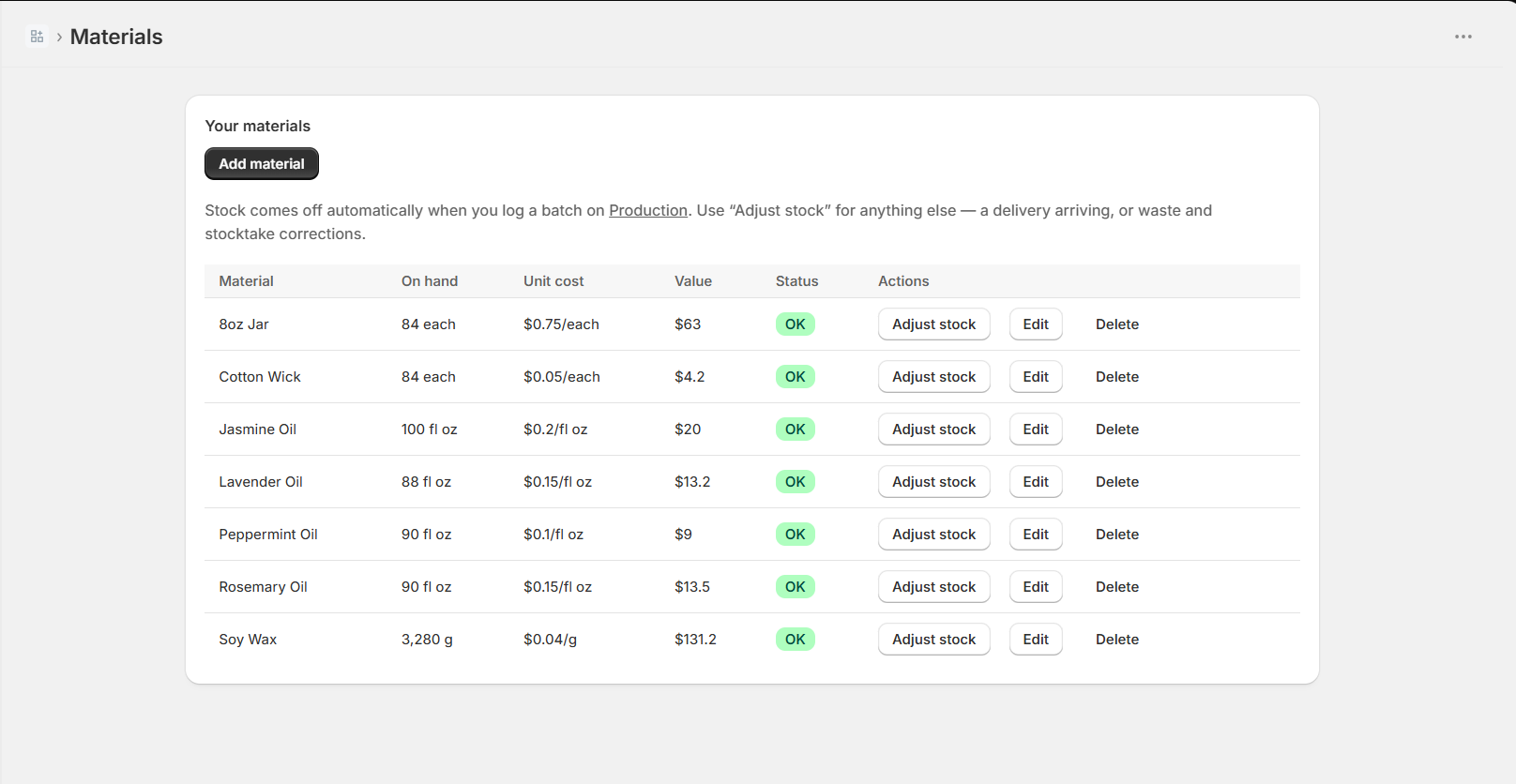
Your materials list, with what you have and what it costs.
Build a recipe
A recipe tells Benchtop what goes into one finished product. That is the important part. Enter the amounts for a single unit, not for a whole batch.
Go to Recipes and click Add recipe. Pick the product from your store. If that product has sizes or scents, pick the exact one you are making, and repeat this step for each.
Then click Materials on that recipe's row and add each material along with how much of it one unit uses. For example: 120 grams of soy wax, 1 jar, 1 wick, 12 grams of fragrance oil.
As soon as your materials are in, Benchtop shows what that product costs you to make and your margin against the price you charge in Shopify.
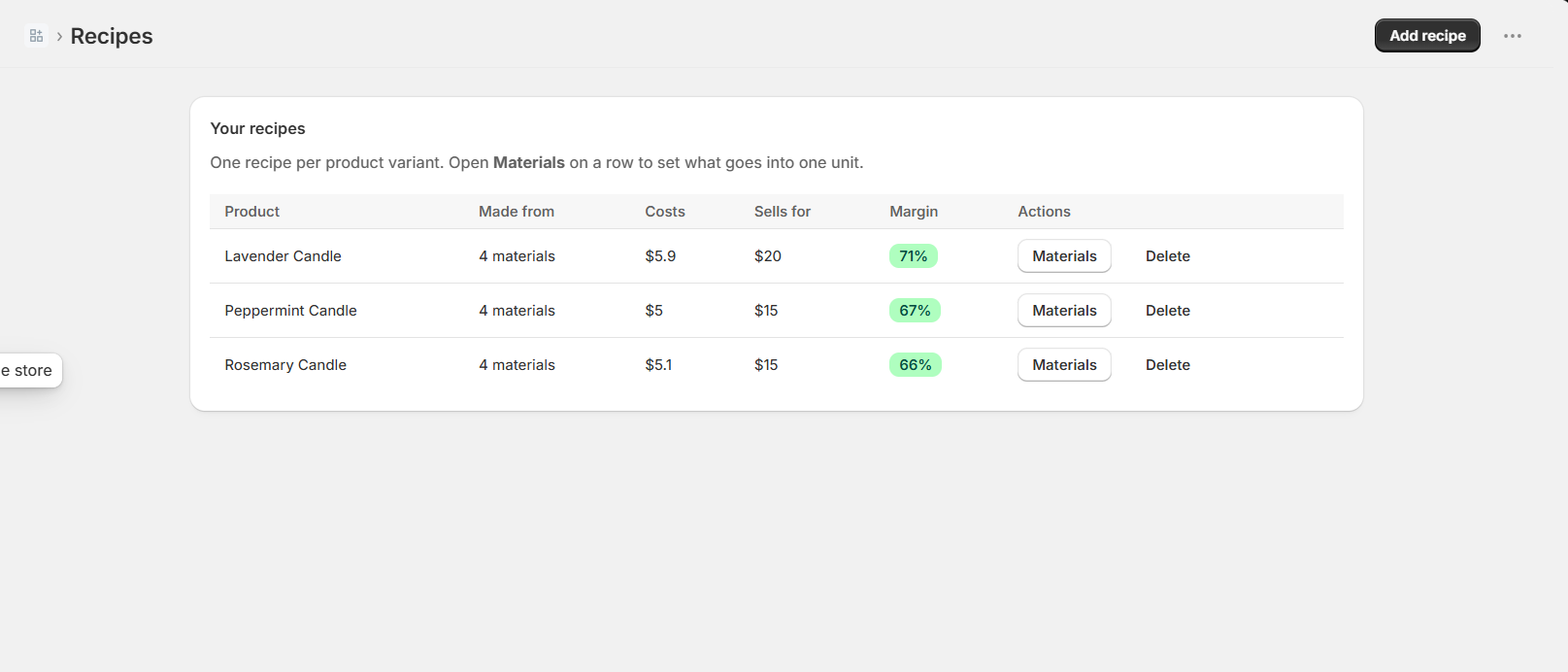
Each product with its true cost and margin, worked out for you.
Log a batch
This is the part you will use forever. Whenever you actually make something, tell Benchtop.
Go to Production, choose what you made, enter how many you made, and click Log production.
Two things happen straight away:
- Your materials come off the shelf in Benchtop.
- Your finished stock goes up in Shopify, ready to sell.
You never type the same number into two places. That is the whole point of the app.
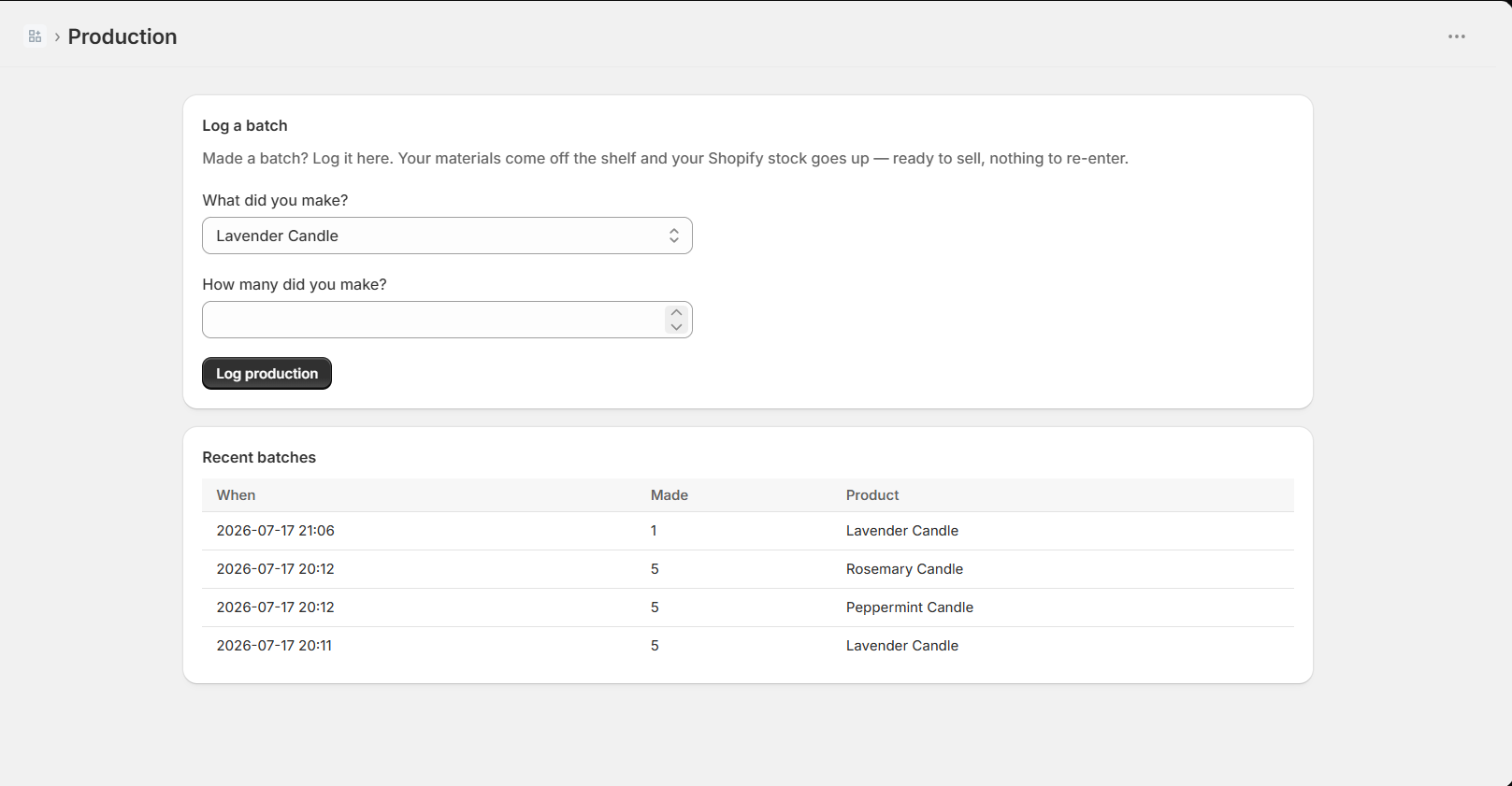
Logging a batch, and the history of everything you have made.
Check that it worked
Worth doing once, so you trust it afterwards.
- Open Materials. The materials used by that batch should have gone down by the right amount.
- Open Products in Shopify and look at the item you made. Its stock should have gone up by however many you logged.
Your Overview page pulls it together: what your materials are worth, how many of each product you could make right now, and your margin on everything.
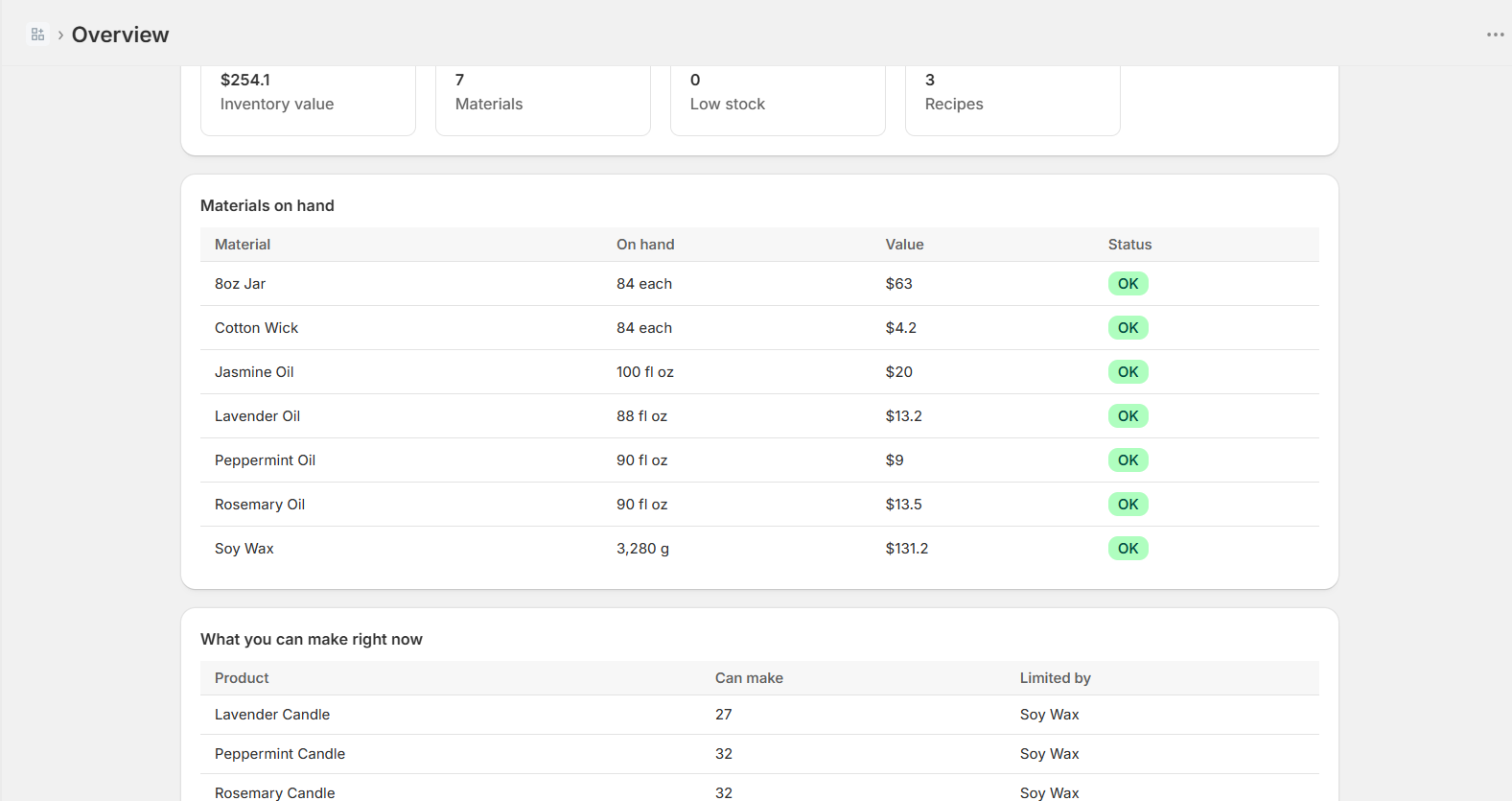
The overview, showing where everything stands.
Using Benchtop day to day
Once you are set up, there are only four things you ever do:
- Log every batch as you make it. That keeps everything else true.
- When supplies arrive, open Materials, click Adjust stock on that material, and enter how much arrived as a positive number.
- When something is wasted or a count is off, use Adjust stock with a negative number, like -50, to take it back off.
- When a supplier raises a price, click Edit on that material and update the unit cost. Your margins update everywhere.
Common questions
What can Benchtop read when I import materials?
Photos of supplier invoices or receipts, including pictures taken on an iPhone, plus PDF invoices and CSV or Excel spreadsheets. Benchtop pulls out the item names, quantities, and costs and shows them to you in an editable list first. You always review and approve before anything is added, so a misread line is a quick fix, not a mess to undo.
My product does not appear when I try to add a recipe
It almost always means inventory tracking is off for that product. In Shopify go to Products, open it, and tick Track quantity in the Inventory section. Then try again.
I logged a batch but my Shopify stock did not change
Check that Track quantity is on for that product. If you have more than one store location, Benchtop adds the stock at the location you ship from, so make sure you are looking at that location rather than another one.
Why did my materials not go down when I made a sale?
Because they were already used up when you made the item, not when someone bought it. Benchtop takes materials off the shelf at the moment you log a batch. When a customer buys, Shopify reduces the finished stock as it normally does. Counting materials again at the sale would take them off twice.
I made a mistake logging a batch
Use Adjust stock on the affected materials to put things right, and correct the product's inventory in Shopify. There is no undo, so it is worth double checking the quantity before you log.
I have run out of room on the free plan
The free plan covers 30 materials and 10 recipes. If you need more, open Overview and click See plans to upgrade. Nothing you have already added is ever deleted or hidden.
Something else is wrong
Email support@getbenchtop.com and tell us what happened. A real person reads it.